Project Overview

For our senior design project, we partnered with Dr. Xu and his lab in the UCF engineering department to work on their autonomous strawberry-picking robot. Inheriting a robot that could only be run off the command line, we were asked to make it something a field worker could start.

I designed the entire interface in Figma, built the frontend with Ryan, and managed the project. The old startup took seven steps in several programs. Now one interface starts, calibrates and runs the robot. It is made for field workers and farmers.

The Problem

The original robot startup took seven steps, each with smaller steps inside. To start the robot, you had to open VS Code (with a MicroPico extension) and MATLAB, and answer legacy yes/no questions in a command window.

Many farmers and field workers do not have a technical software background, and using that iteration of the robot was frustrating and unintuitive. Additionally, the engineering team, mostly mechanical engineers who maintain the robot, needed enough detail to diagnose it.

Dr. Xu also prioritized readability in harsh sunlight, where a screen reflects the most.

Research Phase

On June 11, we had our first formal meeting with Dr. Xu. We ironed out deliverables and stretch goals. His two biggest priorities were streamlining the process and keeping the already written code that ran to the robot under wraps. We floated the idea of consolidating the MATLAB, Arduino C, and Python code into Python-only code so that future inheritors of the project would have an easier time iterating on our work. Dr. Xu rejected the idea because it was out of scope: a new interface and a full rewrite in two semesters was too much.

After our meeting and getting access to the code base, Jacob wrote a comprehensive function dictionary comprising what each function did, how it interacted with the hardware, and its connection to other functions. Amos researched what tech stack would work best with the code base, and decided on React and TypeScript, with a FastAPI backend.

On June 25, we met Dr. Xu again with our research findings and had follow-up clarification questions. We asked him and Chris to run us through an entire session: someone walking up to the laptop, turning on all the hardware and checking the wires, calibrating the robot, running and monitoring the robot, and shutting it down. As they ran through the process, I built a checklist of everything that needed to get done, start to end. The walkthrough and checklist became the map for the user flow.

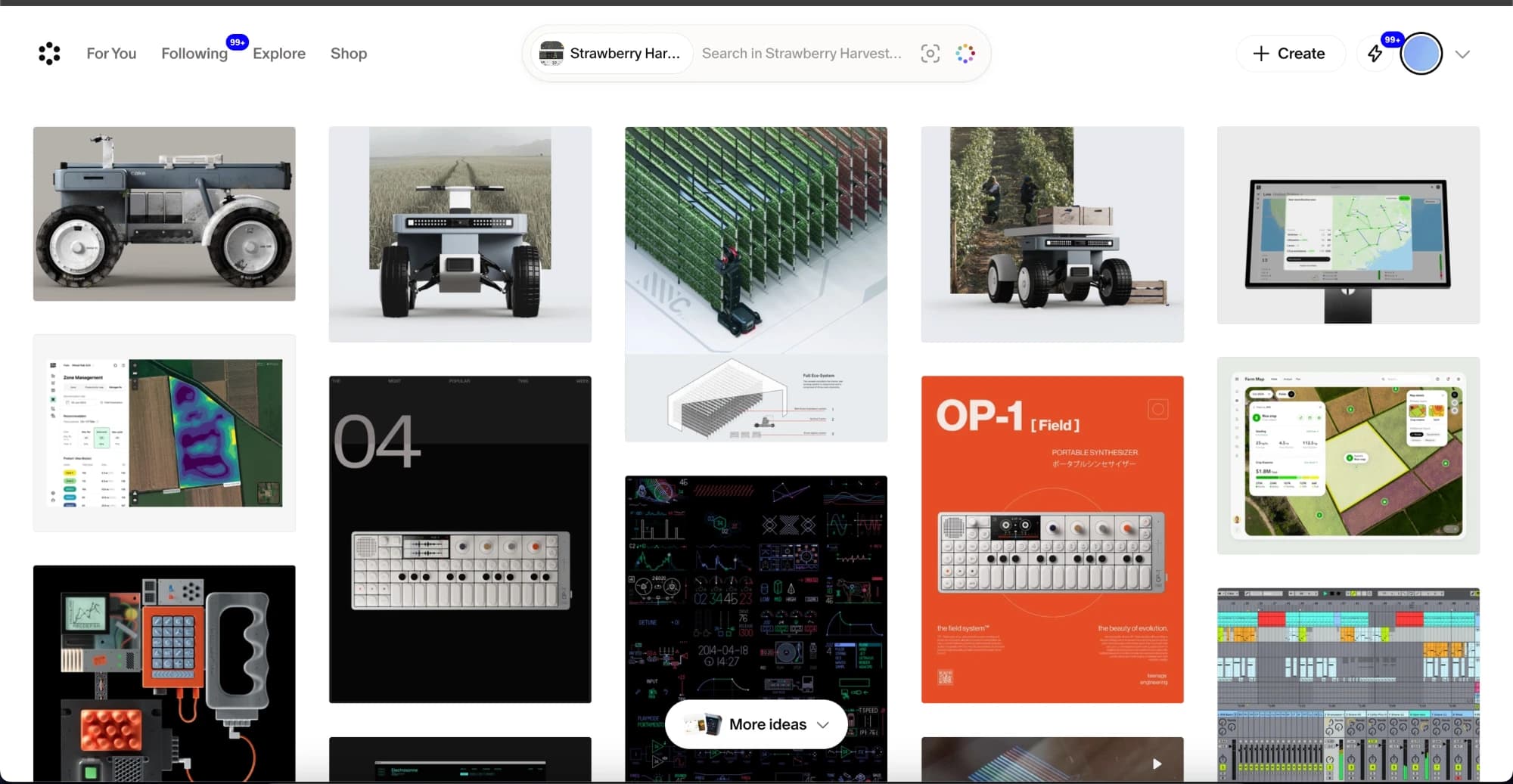
For design references, I used Cosmos and Are.na to collect a rich library of visual resources. My first pass at collecting was unfruitful, since many of the references I pulled were motion-heavy, sleek portfolios and SaaS templates. I was looking for interfaces that were rugged and could handle many controls on screen at once without feeling overwhelming or incomprehensible to a first-time user.

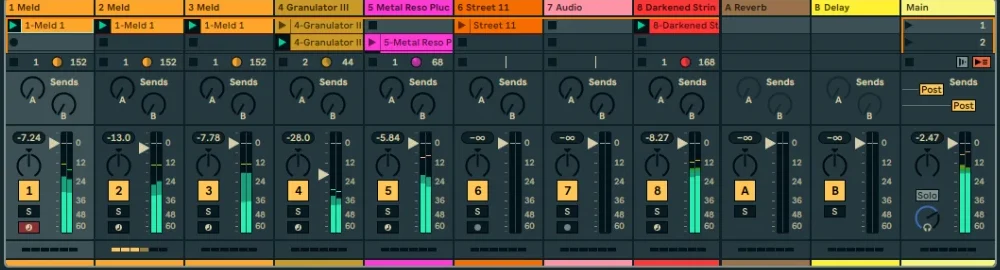
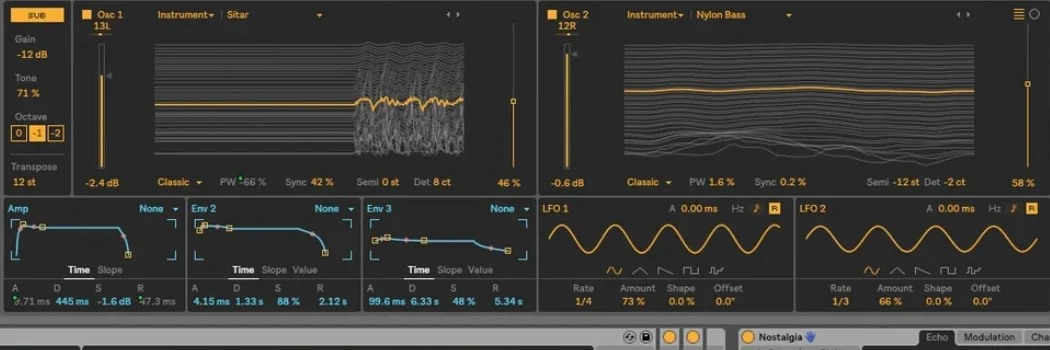
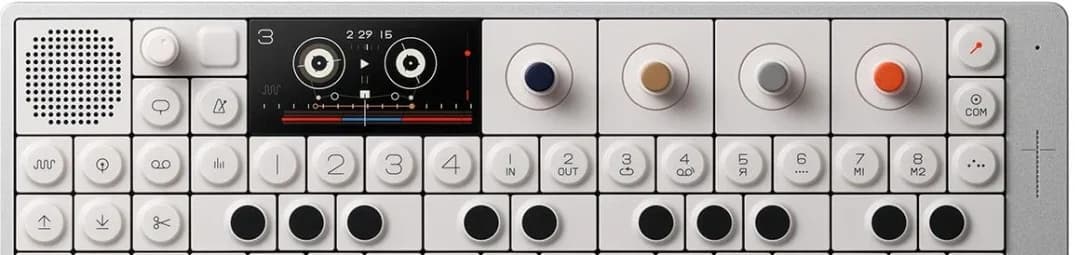
For my second pass, I looked at audio software and audio hardware. For audio software, I drew inspiration from my main audio workstation of choice, Ableton. Teenage Engineering makes audio hardware that is delightful and easy to use, and that can go as deep technically as the user wants to go. I was drawn to their industrial color palette and their top-down knob-to-button flow.

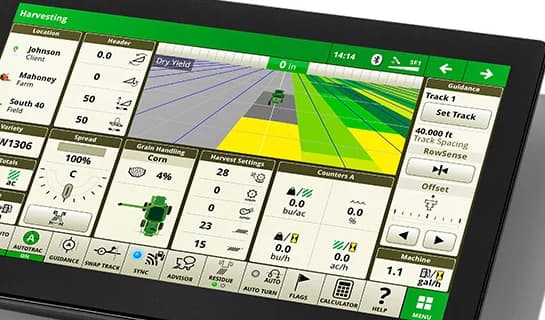
Finally, I looked at John Deere’s autonomous hardware and the software interfaces used to navigate it. I ended up rejecting those for inspiration, as I found them too visually unappealing and unintuitive. The screens were packed with unimportant information, and many of the icon buttons used to command the robot were small with no contrast.

With a direction from the references, I wanted to watch real people use the flow. In August I sat down with three field workers. They worked through the main tasks, like starting the robot, reading the screen from 2 meters away, and hitting emergency stop. We did not record those, and nobody went outside. In September I talked with two field workers at a local farm. They used the earlier prototype, and we added first-time setup and calibration. They also read the screen outside in daylight, and we recorded those sessions. Five people is a small group, so I treat what I saw as patterns, not proof. It was enough to shape the decisions in the next section.

Timeline

  1. June 11

    First meeting with Dr. Xu

  2. June 25

    Follow-up meeting & walkthrough

  3. Mid July

    Figma demo and Dr. Xu’s feedback

  4. August

    Field worker interviews

  5. September

    Round two of interviews

  6. October

    UI and robot field test

  7. November 18

    Senior Design showcase

The Process: How We Made It Look Easy

Before pushing pixels, we hammered out a user flow that would take the fewest steps to get from app boot-up to the robot moving, while still keeping it coherent and instinctual.

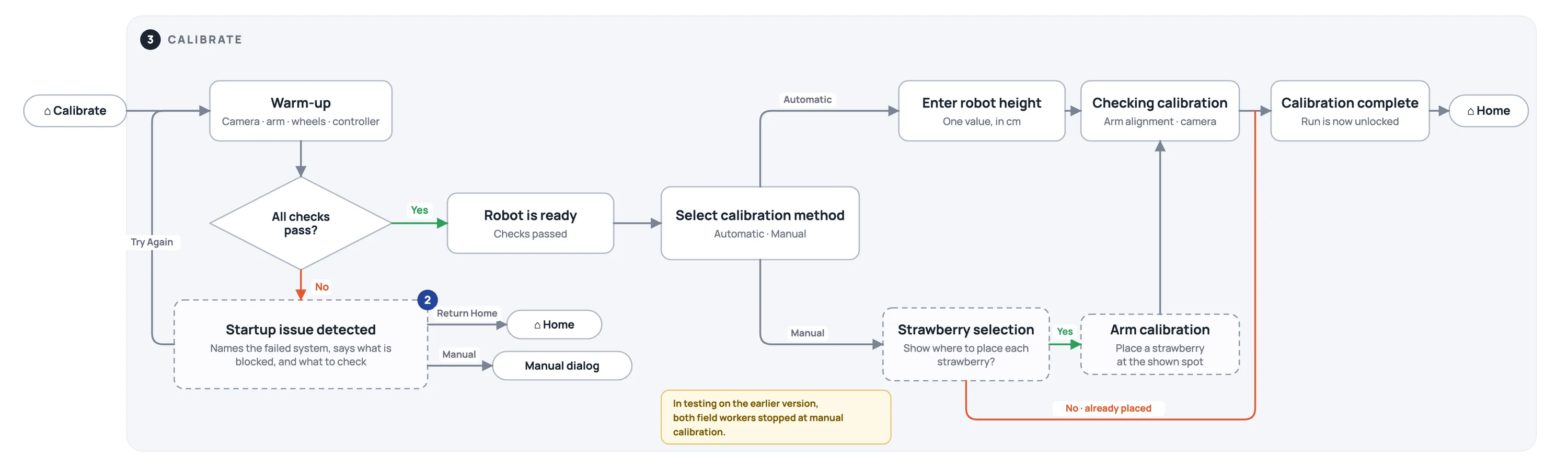
The calibration flow: from the Calibrate card on Home through warm-up, an all-checks decision, a failed-check screen with three ways forward, choosing a method, then either entering the robot height or placing a strawberry by hand, checking, and back Home with Run unlocked. Dashed boxes are paths users did not try.
User Flow
  1. Decision I: The Calibration Step

    Before, calibration started from the Run button, with a pop-up asking whether to use saved calibration points. For safety, Dr. Xu wanted an “in-between” phase between calibration and the robot actually starting, for two reasons. First, the robot has no collision detection, so he worried that field workers new to the product would not think to clear debris from the farm bed or keep other workers out of the robot’s way. Second, he worried that field workers would instinctively try to run the robot without going through boot-up and calibration, which could cause catastrophic hardware failures.

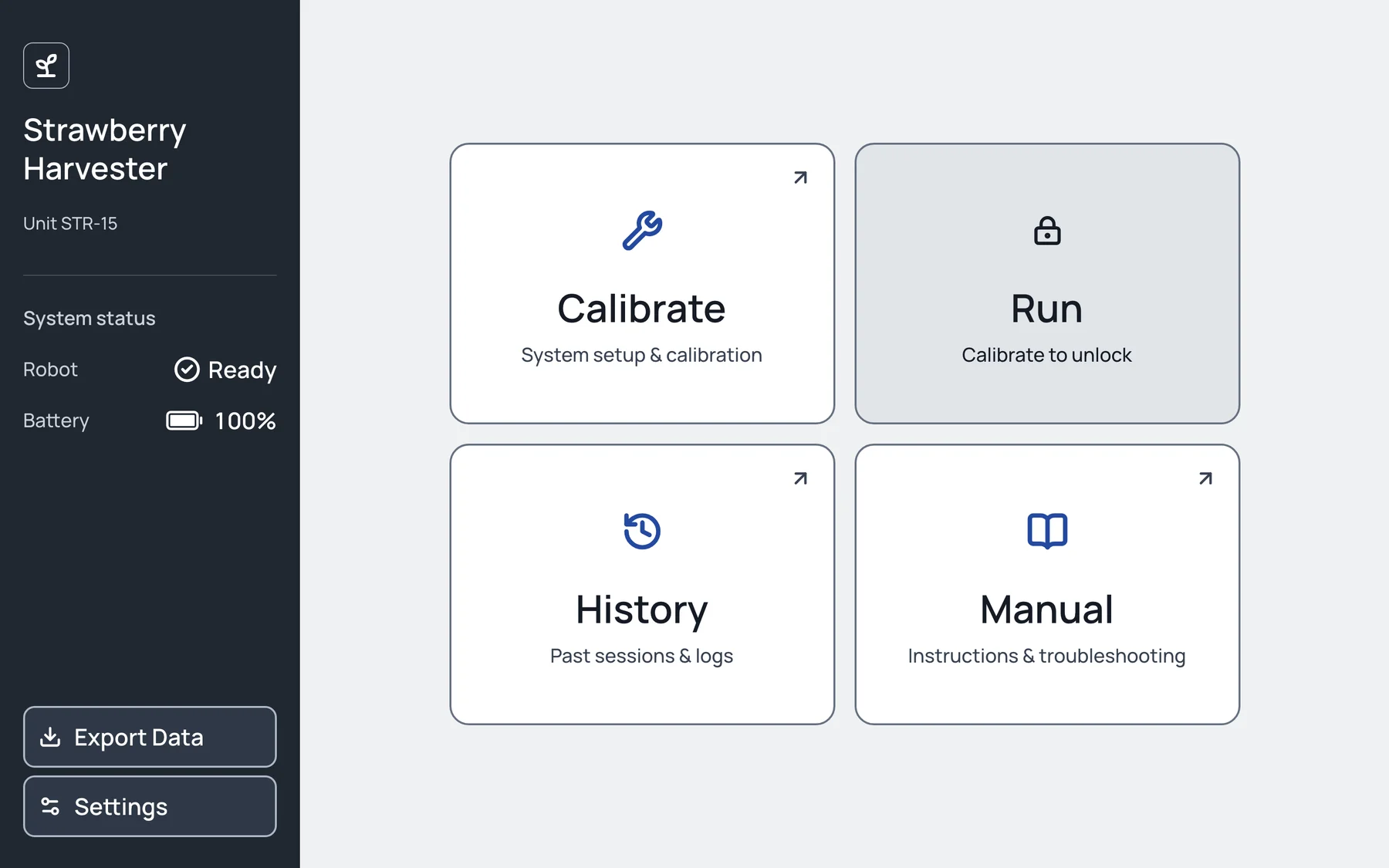
    Dr. Xu’s instincts proved right in field testing and interviews. Despite the greyed-out Run button, users S3 and SH‑P03 both tried to press it before boot-up and calibration. To fix this, we made Calibrate its own button and kept Run locked until calibration is done, with subtext under Run telling the user it is not ready to start.

  2. Decision II: Bolder Type = Bigger Screens

    This was by far Dr. Xu’s most valuable feedback. After the Figma demo, he prioritized removing some of the sleekness of the UI and making everything (the buttons, the font, the screens) significantly bigger and bolder. He noted that many of the farmers he had collaborated with were elderly and had issues with their vision. Add Florida’s harsh sun, and even people with perfect vision could struggle to use the laptop.

    We remedied the bright glare by going bold. Along with typography and buttons, we made our stroke lines thicker and our color contrast starker. For the initial calibration flow, we had pop-up modals that overlaid the home screen. Ryan and I discussed and decided to turn the setup modals into full screens. This bought us a lot more room in the part of the user flow that required the most user engagement, which let us resize all the design components without crowding the screen.

    Field testing supported this change. In our first test with the original prototype, battery and time could not be reliably read at 2 meters. Both SH‑P01 and SH‑P03 felt like they had to squint to make out what the home buttons were saying. When taking the laptop indoors, both had an easy time, even from longer distances.

    For the second field test, we took the redesigned UI and robot back outside, doing our best to match the weather and glare conditions of our first field test. All participants noted that the new design made it much easier to read and understand. Direct sun glare was still hard, but it could be reduced by tilting the laptop screen slightly downward, away from the reflection of the sun.

    The tradeoff: we traded the sleekness of our original design for function, and for people working outside in the Florida sun, that was the right call.

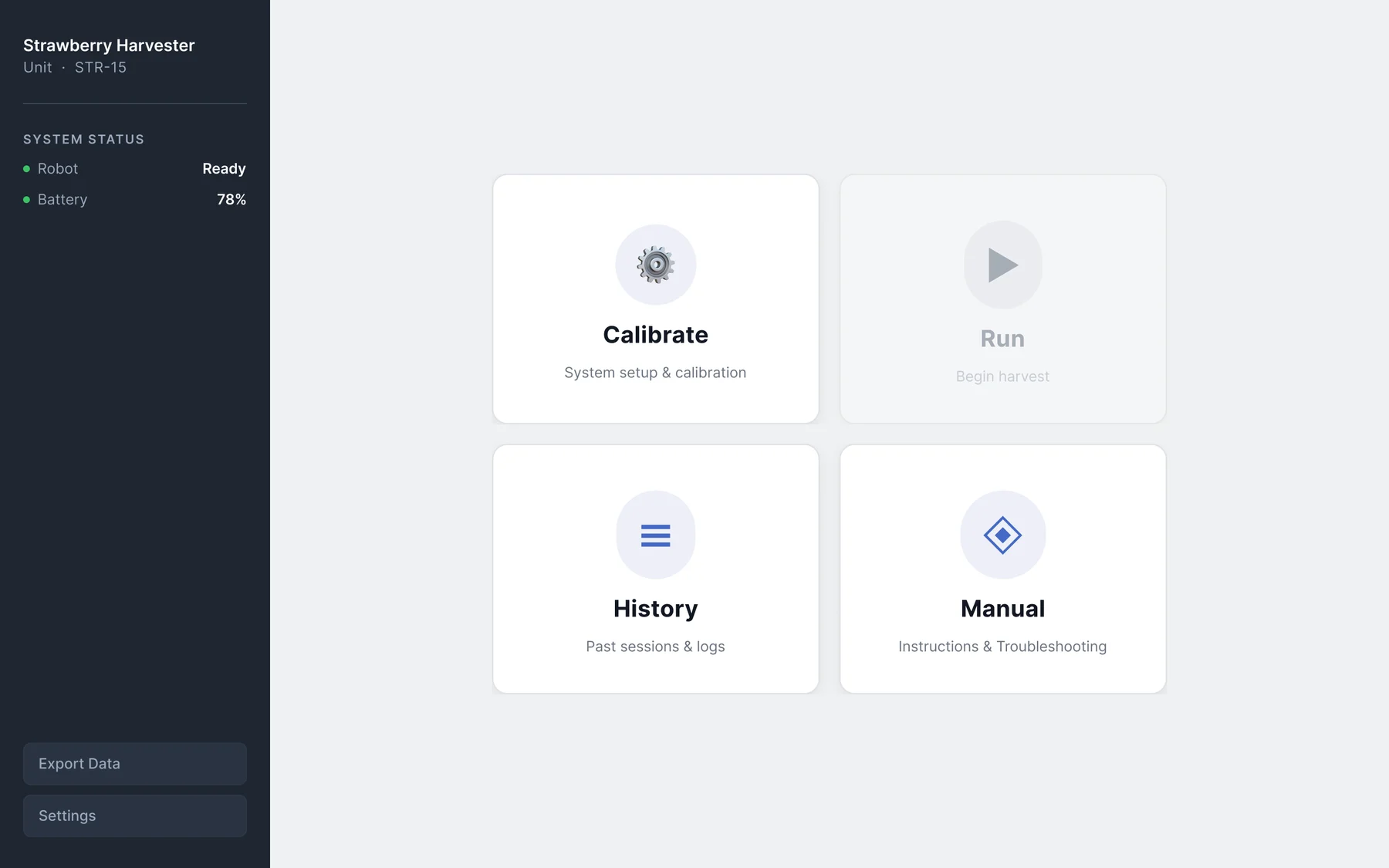
  3. Figma frame of the home screen: a dark sidebar with robot status, and four cards: Calibrate, Run greyed out, History and Manual.
    Figma demo
    Final build of the home screen: a dark sidebar with robot status and battery, and four large cards: Calibrate, a locked Run card that says Calibrate to unlock, History and Manual.
    Final Build
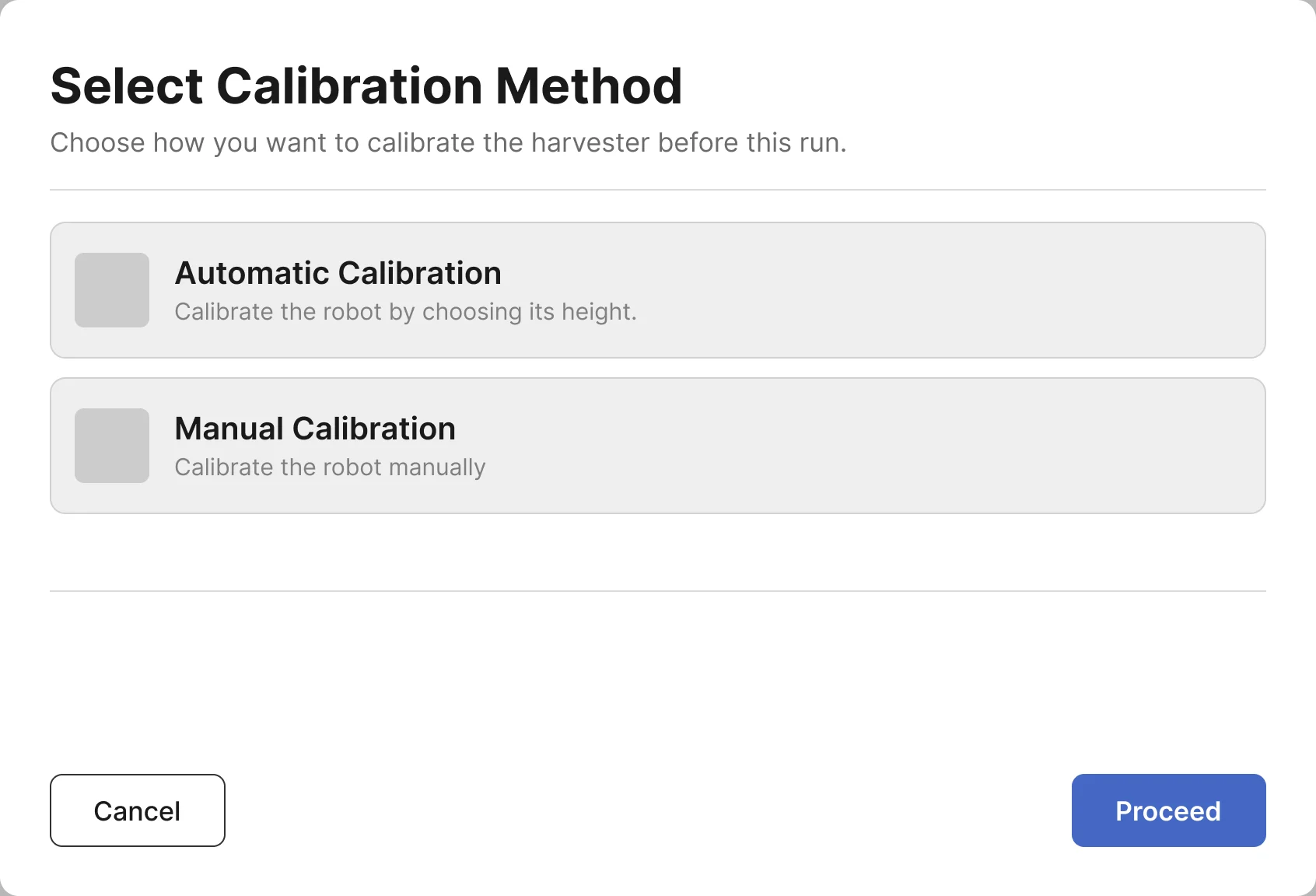
    Figma frame: choosing a calibration method, with grey placeholder icons, Cancel and Proceed.
    Figma demo
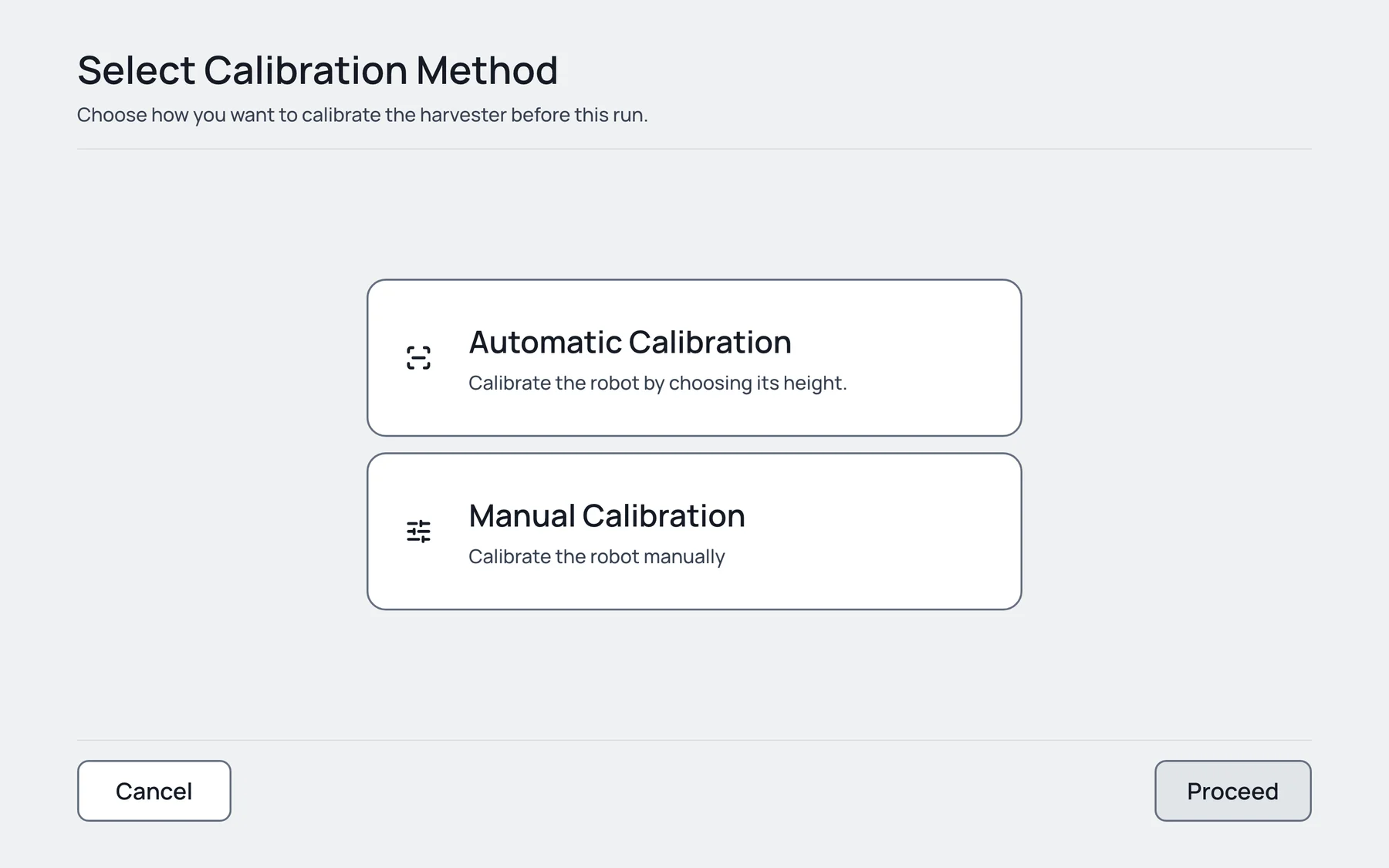
    Final build of the calibration method screen: two options with icons, one selected, and Proceed disabled until one is chosen.
    Final Build
  4. Decision III: Let’s Calibrate!

    Dr. Xu wanted the interface to show more. He wanted the user to be able to input the claw height and arm length, and to see that the rangefinder was working properly. For the initial onboarding settings, he wanted the user to enter data about the field, including row spacing, number of rows, row length, bed height, and latitude and longitude. He also asked for a notification pop-up that would alert the user when the strawberry basket was at capacity.

    We initially agreed, but soon found that, because of what was available in the MATLAB code, we could only implement some of it. We discussed the limitations with Dr. Xu and agreed that calibration needed only one real value to succeed: the height of the claw relative to the bed, in centimeters. Settings would contain four values: claw height, space between rows, number of rows, and length of row.

    Latitude and longitude, bed height, and the basket-full pop-up all had to be cut. Either the hardware could not support them in its current state, or they were out of scope for the timeline.

  5. Decision IV: Say What Broke, Plainly

    In the early designs, when a failed check occurred during the boot-up phase, it would reset the booting phase and repeat the error, creating an endless cycle that could only be exited by resetting the browser. For a field worker standing at the robot, a failed check was a dead end.

    The first version showed three things: the name of the error, a fault code, and where on the robot it came from. We included a Try Again button in the bottom right corner of the screen so that the user could try the boot-up process again once they fixed the hardware issue.

    When we ran a simulated error in the field test, users knew something was wrong, but not how to fix it. S1, S2, S3 and SH‑P03 all mentioned that fault codes were not beneficial for troubleshooting the error, just noise. The only things they needed were what the error was, in plain English, and where on the robot they could find it.

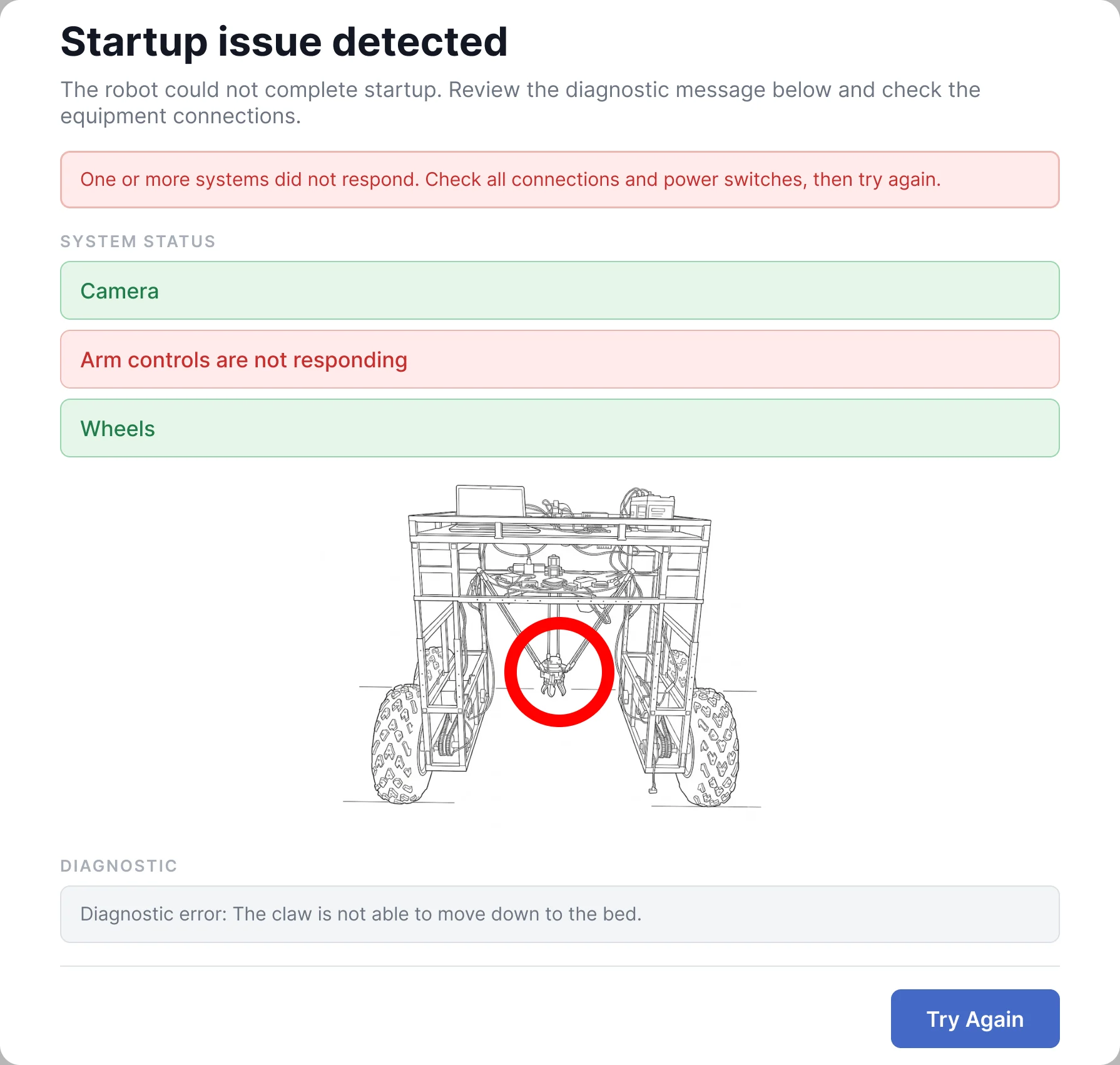
    For our initial Figma demo, we had a stylized drawing of the robot with a red circle around where the error was. For our final build we removed it, since it was hard to tell where on the robot the error was from a single 2D image. Plain words beat an unclear picture.

  6. Figma frame: a startup issue with a drawing of the robot, its arm circled in red, status rows, a diagnostic message and one Try Again button.
    Figma demo
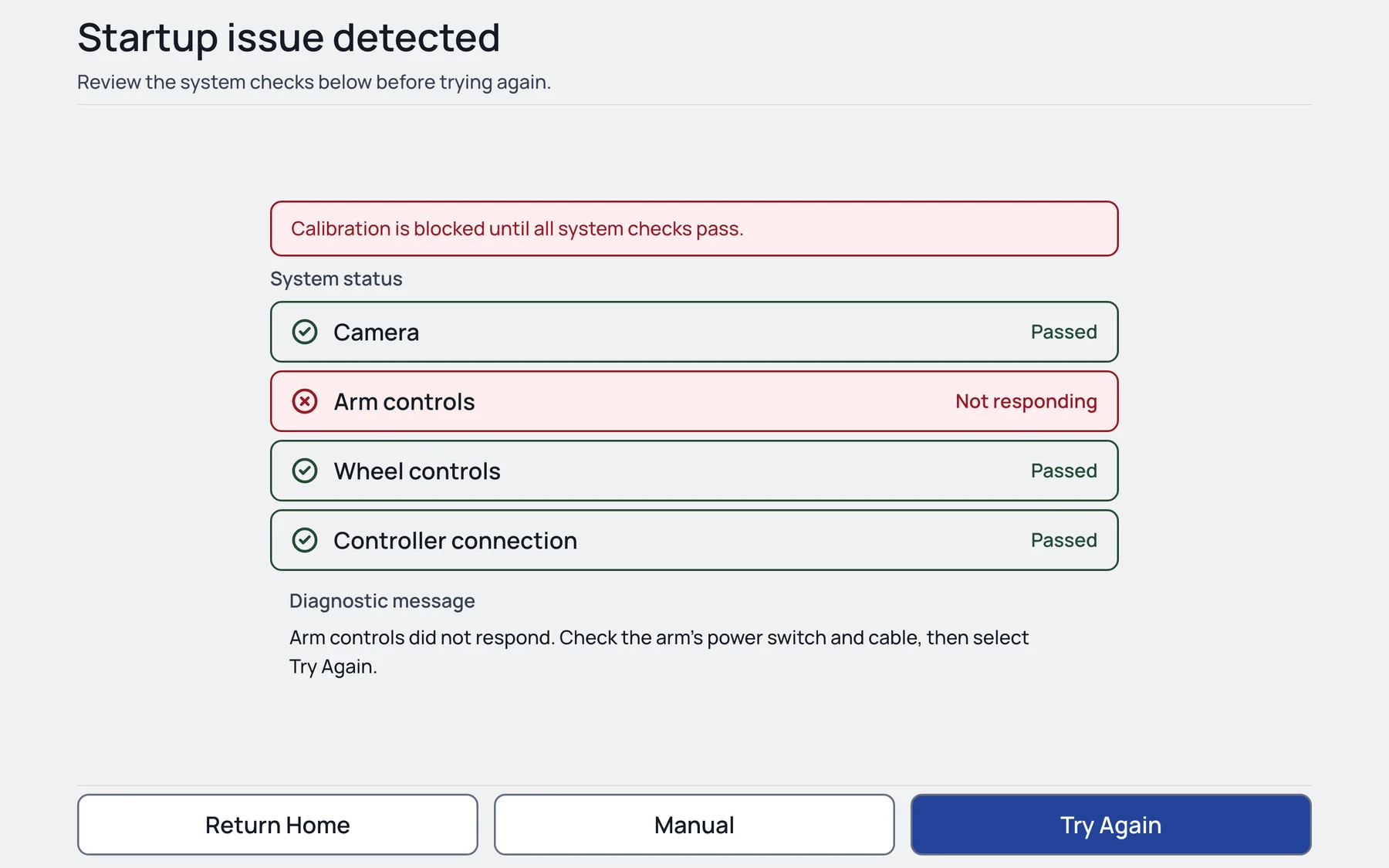
    Final build of the failed-check screen: status rows with the arm controls marked as not responding, a message about what to check next, and three buttons: Return Home, Manual and Try Again.
    Final Build
  7. Decision V: Emergency Stop

    The very first version we created did not have an emergency stop button or function. The only ways to stop the robot were through the hardware: two switches on top of the robot that turned off the battery. After our June 25 walkthrough with Dr. Xu, we were instructed to add a manual emergency stop function to the interface that would immediately stop the robot. Dr. Xu was concerned about the safety of the users and other workers in a field, and wanted more than one fail-safe method of stopping the robot.

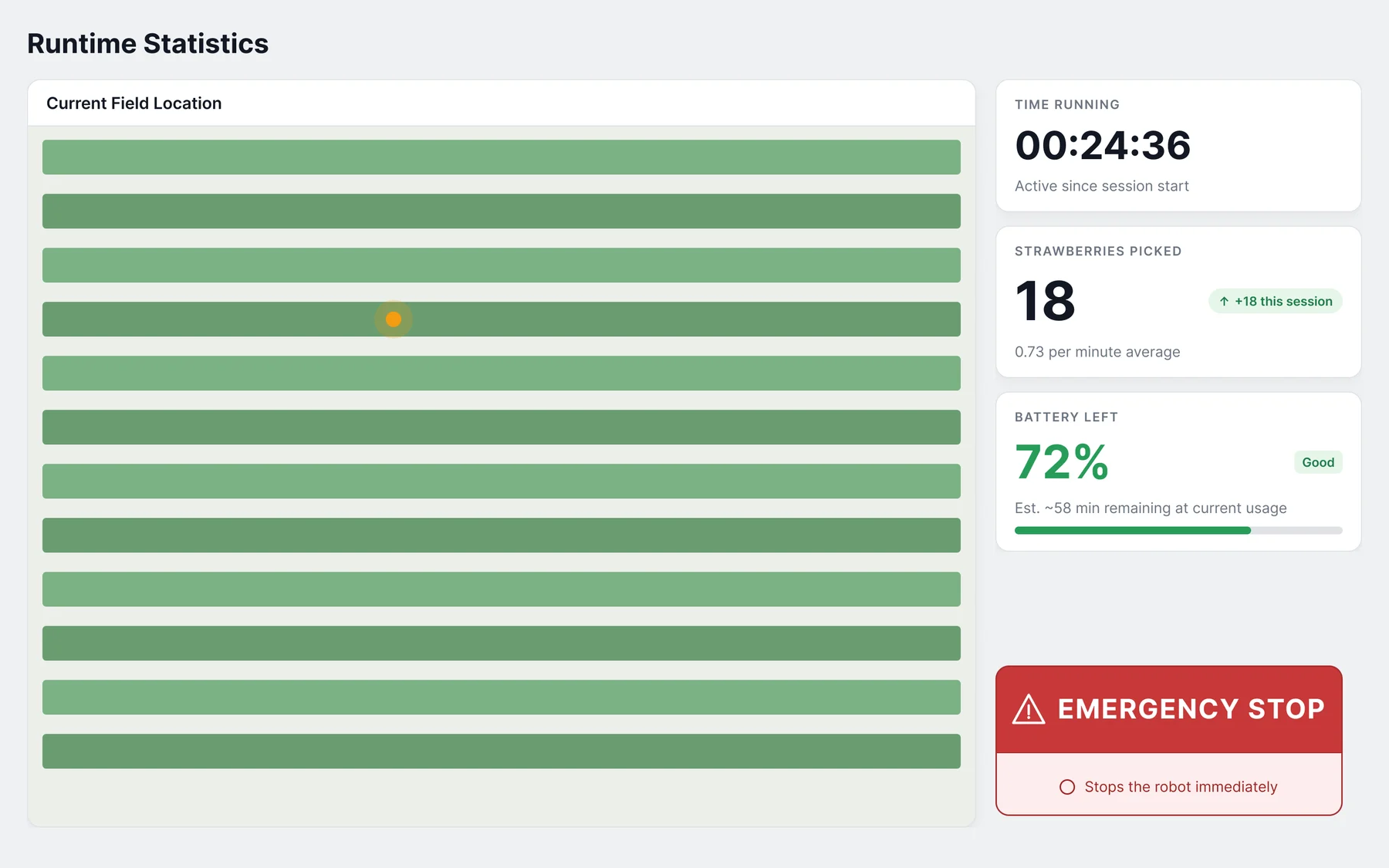
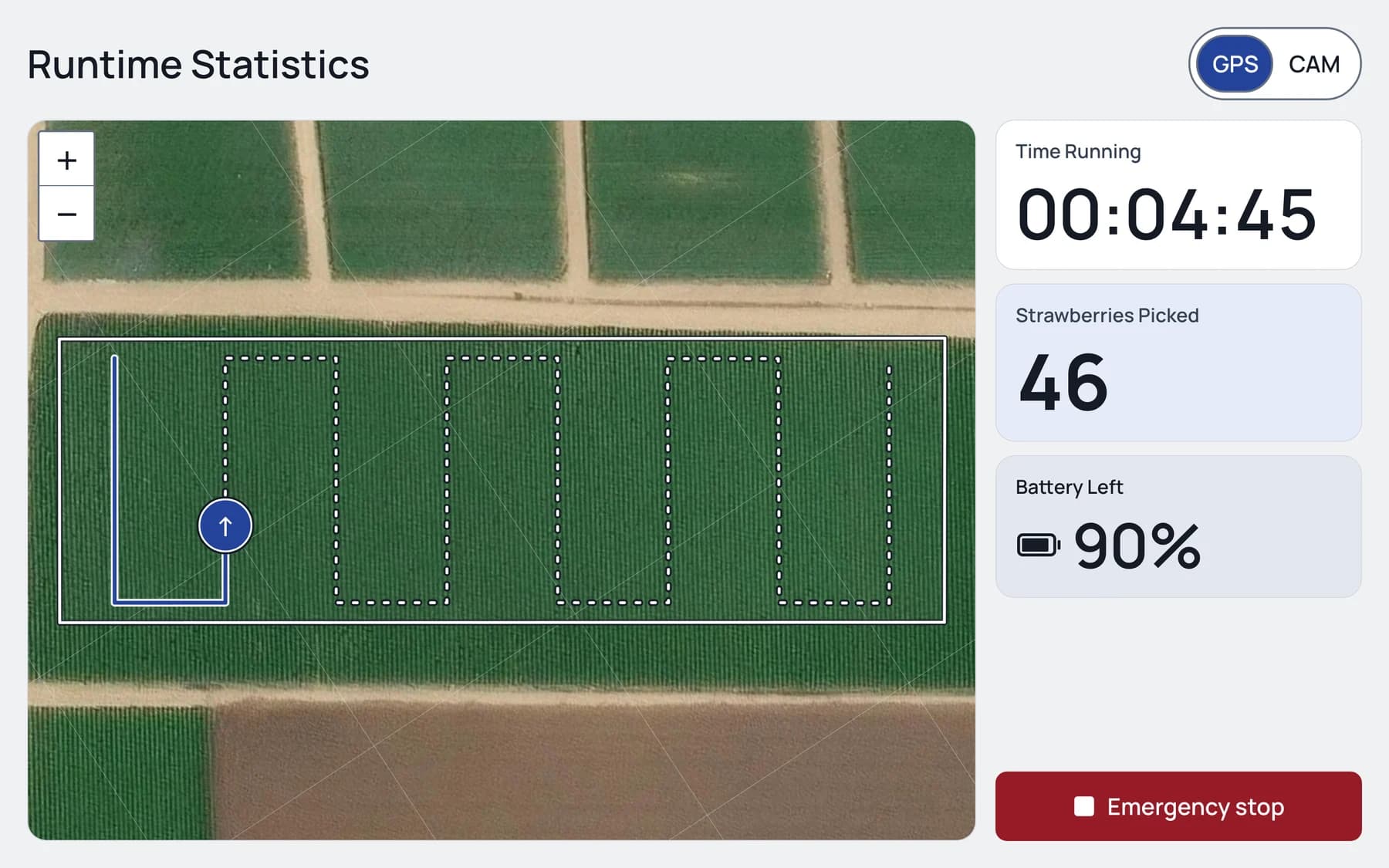
    When designing the robot run screen, I made sure that only one element on the screen would be red: the emergency stop button. That way, if something went wrong, no one would have to search for it.
  8. Figma frame: the run screen with field stripes and an orange dot, cards for time, strawberries picked and battery, and a large red Emergency stop.
    Figma demo
    Final build of the run screen: a satellite map with the route, three cards for time, strawberries picked and battery, and one red Emergency stop.
    Final Build
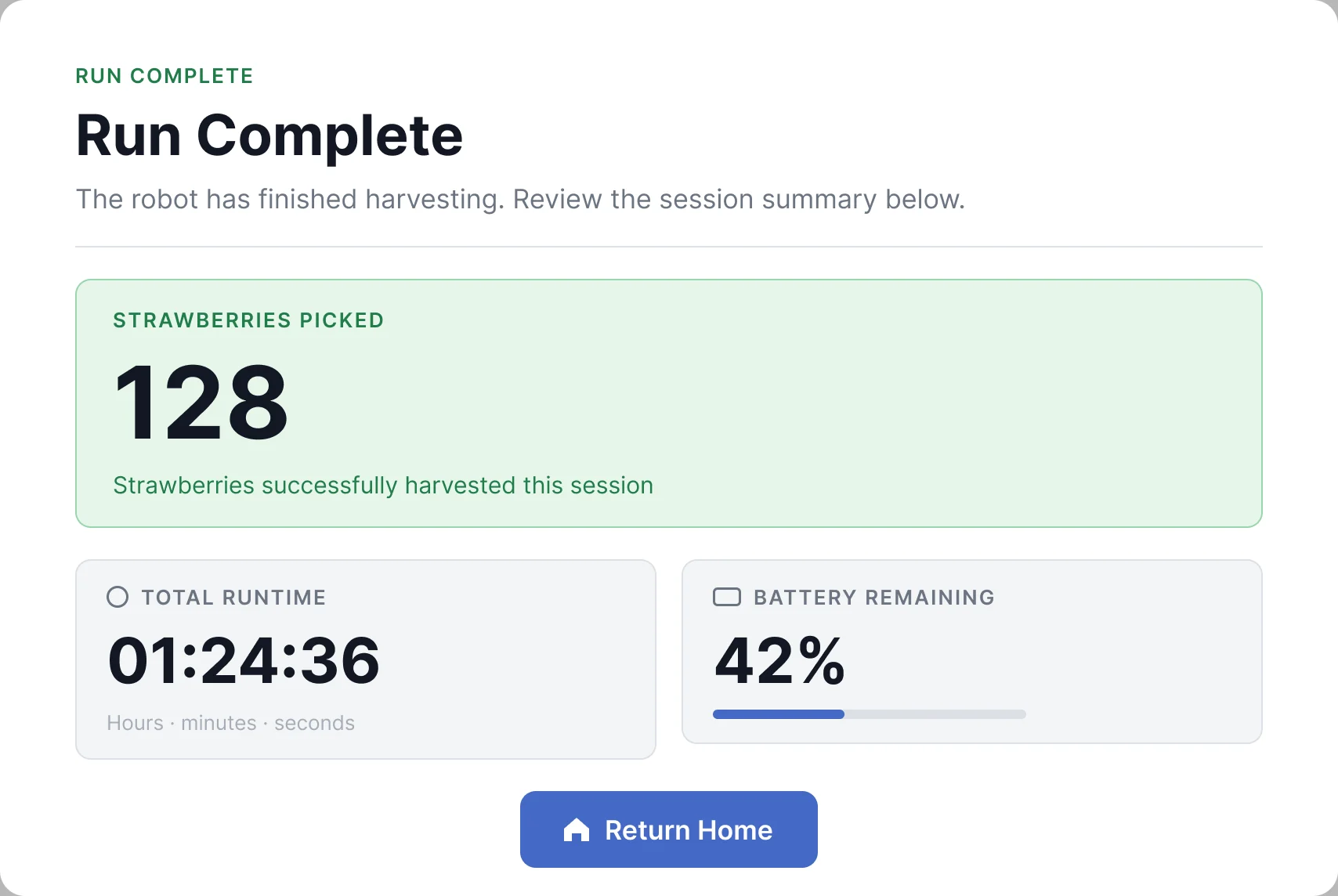
    Figma frame: a full-page Run Complete summary with strawberries picked, total runtime and battery remaining.
    Figma demo
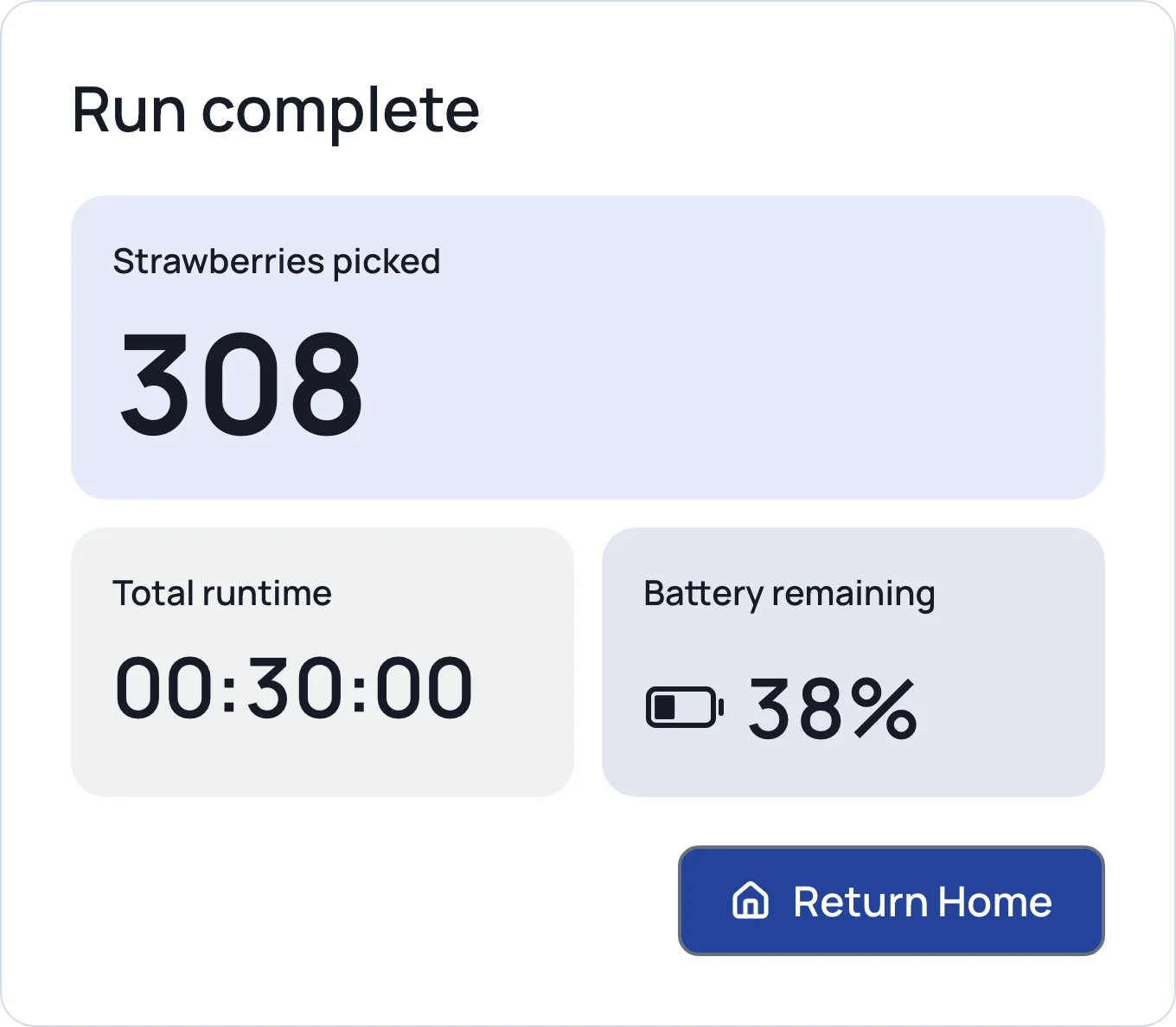
    Final build of the Run complete modal over the run screen: strawberries picked, total runtime and battery remaining, and a Return Home button.
    Final Build

Design Guidelines

Color Palette

The color palette brings together the core colors of the interface: Charcoal, Cobalt and White. Together they define the app’s visual personality and are used consistently across every screen. Cool Grey, Green and Red extend these colors for the ground and for status.

Contrast was measured across 279 text samples. The lowest is 7.456:1.

  • Charcoal

    HEX: #202731
    RGB: 32 / 39 / 49

  • Cobalt

    HEX: #24439B
    RGB: 36 / 67 / 155

  • White

    HEX: #FFFFFF
    RGB: 255 / 255 / 255

  • Cool Grey

    HEX: #F0F1F3
    RGB: 240 / 241 / 243

  • Green

    HEX: #244B35
    RGB: 36 / 75 / 53

  • Red

    HEX: #961B27
    RGB: 150 / 27 / 39

Primary Font

The primary font is used for headings, labels, buttons and numbers across the interface. It establishes visual hierarchy and should be applied consistently so the app stays readable from 2 meters away. Nothing is set smaller than 18px.

Manrope

ABCDEFGHIJKLMNOPQRSTUVWXYZ
abcdefghijklmnopqrstuvwxyz
0123456789

  • 72px00:30:00
  • 40pxRun complete
  • 32pxCalibrate
  • 24pxReturn Home
  • 20pxKeep the robot powered on
  • 18pxClaw height recorded

Screens

This shows how the design is applied to the real app. The layout keeps each screen short and the type big, with the color and typography making every control easy to read at a glance, even from a distance.

  • Final build of the home screen: a dark sidebar with robot status and battery, and four large cards: Calibrate, a locked Run card that says Calibrate to unlock, History and Manual.
  • Final build of the run screen: a satellite map with the route, three cards for time, strawberries picked and battery, and one red Emergency stop.
  • Final build of the failed-check screen: status rows with the arm controls marked as not responding, a message about what to check next, and three buttons: Return Home, Manual and Try Again.
  • Final build of the calibration method screen: two options with icons, one selected, and Proceed disabled until one is chosen.

Visual Language

The visual language is built from a rounded outline, applied the same way everywhere. Cards and modals use a 20px radius, buttons and inputs 12px, and chips 8px, all with a 2px border. A state is a word and an icon, never color alone. Cobalt is the only action color. Red is only for failure and the Emergency stop.

Calibrate
20px
77 cm
12px
Passed
8px
Try AgainReturn HomeProceed
  • CameraPassed
  • Arm controlsNot responding
Emergency stop

Impact

We delivered one interface that starts, calibrates and runs the robot, with troubleshooting, an emergency stop and a user manual. We also wrote and handed off a document of everything that was done and how the code base works, so future capstone teams can continue our work. For a field worker, seven steps in several programs is now one screen.

Reflections

  • What I’d do differently

    In the early stages, while working on the Figma prototypes, I would have put myself in the same conditions as the farmers. I would have worked on the UI outside in peak Florida brightness. I would have noticed sooner that everything had to be bigger and bolder.

  • What surprised me

    How fast the field workers picked up the technology, on both versions of the demo. Going in, I expected a more involved onboarding. Instead they worked out the flow quickly and identified the pain points they’d run into when working with the robot in a real scenario.

  • Looking back

    I am proud of what my team and I have accomplished. Through communication, collaboration, and accountability, we improved a product that should cut some of the physical labor in the field. I am looking forward to checking in often to see how much the robot has progressed.

Home